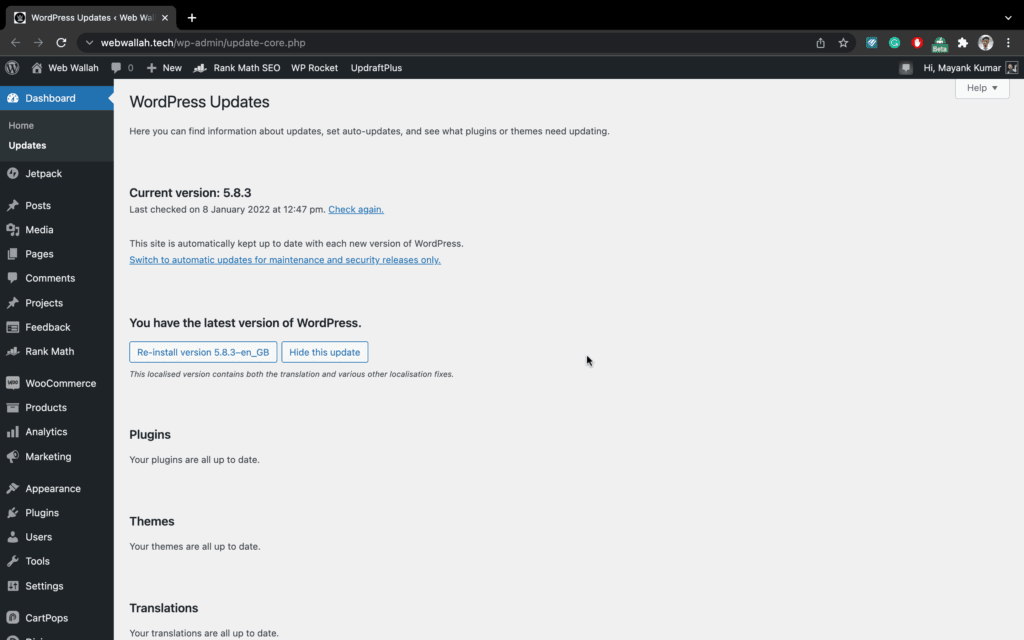
The Dashboard Updates screen contains links to automatically install a ‘core’ WordPress upgrade or to obtain the file required to perform a manual upgrade.
Along with the ‘core’ update procedure, this Screen enables you to upgrade all active or inactive plugins and themes that have accessible updates. Additionally, you can apply translation updates for installations that have the language set to something other than English (United States).
WordPress Updates
No Upgrade is Available
If you are using the most recent version of WordPress, you should receive the following notifications when visiting the Dashboard Updates Screen:
You have the latest version of WordPress. Future security updates will be applied automatically.
If you need to re-install version x.x, you can do so here or download the package and re-install manually:
When visiting the Dashboard Updates Screen, and there is a WordPress upgrade available, you should see messages like this:
Important: before upgrading, please backup your database and files.
Upgrade Automatically – Press this button to begin the automatic upgrade process. The following messages will display during and upon completion of the upgrade:
Downloading update from https://wordpress.org/
Unpacking the core update
Verifying the unpacked files
Installing the latest version
Upgrading database
WordPress upgraded successfully
Once an Update is Completed
After a successful upgrade is achieved, it is a good time to review any new features about the new Version just installed.
Plugin
No Plugins to Update
When visiting the Dashboard Updates Screen, if your plugins (active and inactive) are at the latest versions, you should see this message:
Your plugins are all up to date.
Update Plugins
When visiting the Dashboard Updates Screen, if there are updates available for one or more plugins (active and inactive), this message displays/
The following plugins have new versions available. Check the ones you want to update and then click “Update Plugins”.
Update Plugins – After checking Select All or one or more plugins, click this button to begin the automatic upgrade process. The following messages will display during and upon completion of the upgrade. Messages for each plugin being updated will display. This example shows Akismet being updated:
The update process is starting. This process may take awhile on some hosts, so please be patient.
Enabling Maintenance mode…
Updating Plugin Akismet
Downloading update from plugins.
Unpacking the update…
Installing the latest version.
Removing the old version of the plugin…
Plugin upgraded successfully.
Akismet updated successfully. Show/Hide Details.
Disabling Maintenance mode. All updates have been completed.
Actions: Return to Plugins page | Return to WordPress Updates.
Themes
No Themes to Update
When visiting the Dashboard Updates Screen, if your themes (active and inactive) are at the latest versions, you should see this message:
Your themes are all up to date.
Update Themes
When visiting the Dashboard Updates Screen, if there are updates available for one or more themes (active and inactive), this message displays:
The following themes have new versions available. Check the ones you want to update and then click “Update Themes”.
 Please Note: Any customization you have made to the Themes files will be lost. Please consider using child themes for modifications
Update Themes – After checking Themes (to Select All), or one or more themes, click this button to begin the automatic upgrade process. The following messages will display during and upon completion of the upgrade. Messages for each theme being updated will display. This example shows the WordPress Classic theme being updated:
The update process is starting. This process may take awhile on some hosts, so please be patient.
Enabling Maintenance mode.
Updating WordPress.
Downloading update.
Unpacking the update…
Installing the latest version…
Removing the old version of the theme…
Theme upgraded successfully.
WordPress updated successfully. Show/Hide Details.
Disabling Maintenance mode.
All updates have been completed.
Actions:Return to Themes page | Return to WordPress Updates
The Bottom Line
We skip two sections ‘Translations and Troublesooting’ for now in this blog. Hopefully, it will be covered in WordPress Advance with details. In next blog you will learn about the next topic of you WordPress Dashboard.